11 Viewing Transactions
You can expand any transaction in the Transaction Search Results to display any card and additional details. The additional transaction details includes the transaction date, status, card acceptor name location, transaction amount and fees. For information about how to search for transactions, read Searching for a Transaction.
The details displayed depend on the type of transaction. For example, fields relating to presentments, such as Settlement Amount (DE005), are blank for authorisations.
-
Search for a Transaction to display the transactions in the Transaction Search Results.
-
Click the required transaction to display the additional transaction details on the right of the page.
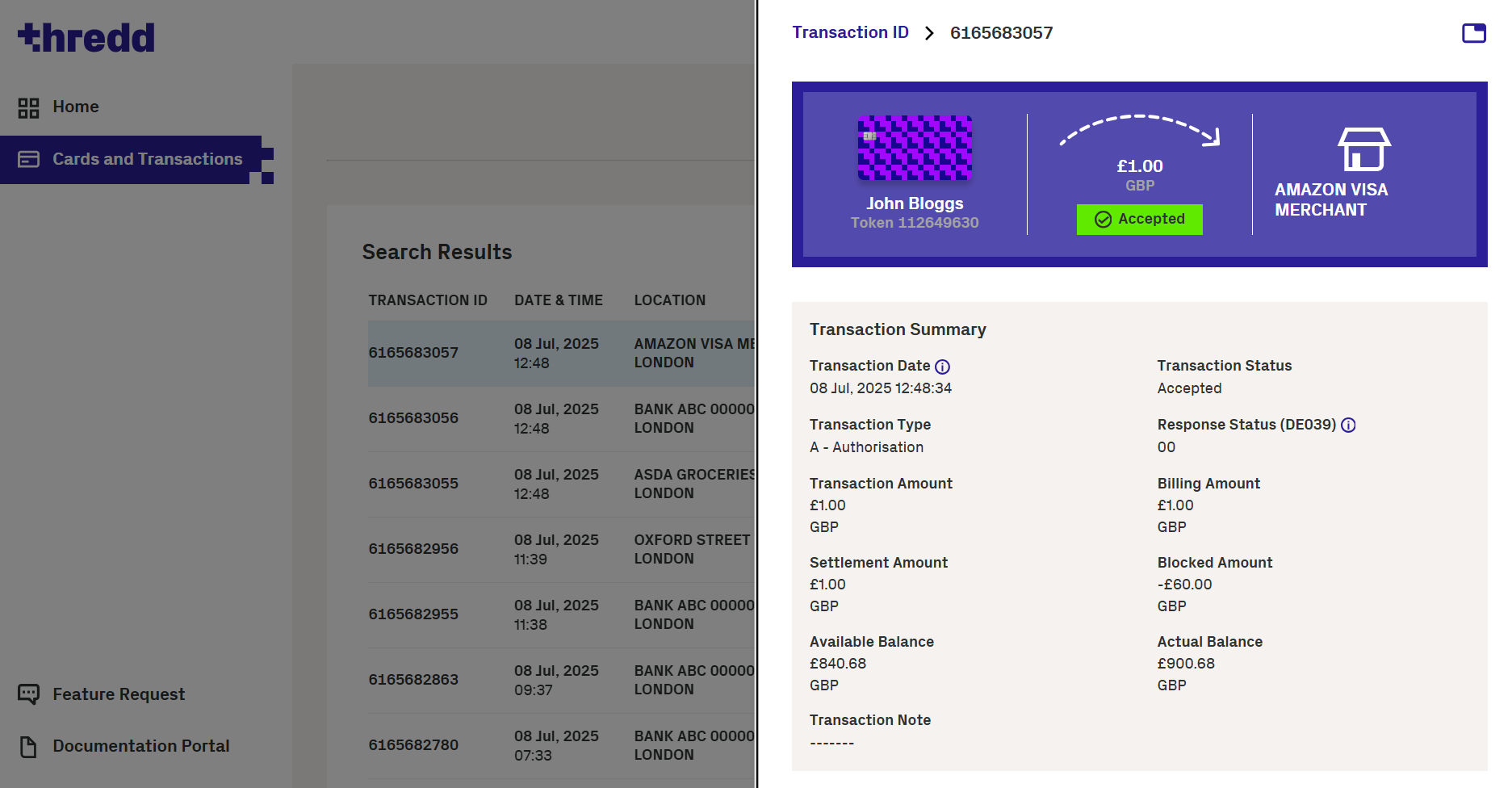
Figure 19: Transaction Details
For information on the Transaction Details fields, see Appendix F: Transaction Details Fields.
11.1 Viewing the Transaction Lifecycle
The Transaction Lifecycle displays all transactions that match the one selected.
For more information, see the Introduction to Card Payments Guide.
This option appears only if there is a matching transaction. If Thredd Portal: Cards and Transaction Management does not find a matching transaction, this option is not visible.
-
View the transaction details. The Transaction Lifecycle button displays below the Amount and Fees section.
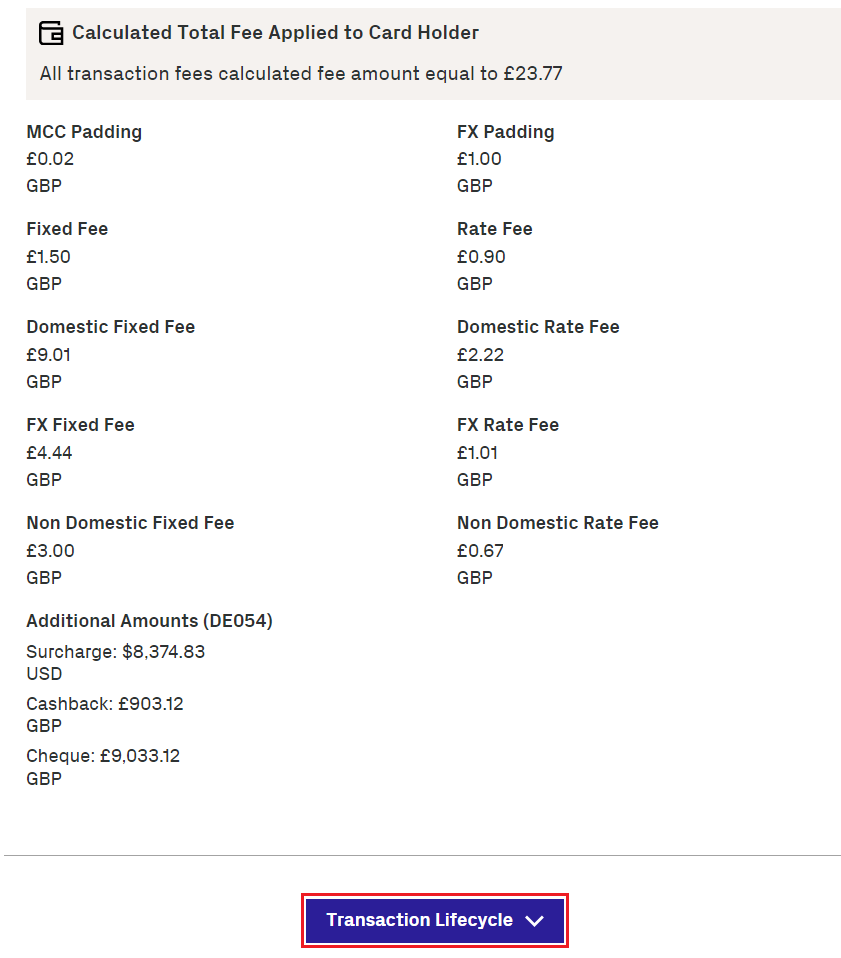
Figure 20: Transaction Lifecycle button
-
Click the Transaction Lifecycle button to display the Transaction Lifecycle details.
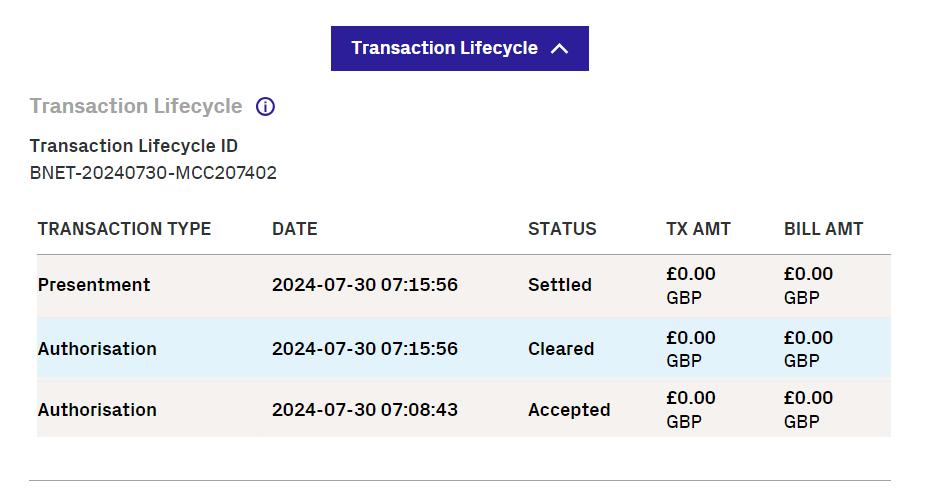
Figure 21: Transaction Lifecycle details
Click on the different transaction types to display information on that part of the transaction details. The Transaction Details will update depending on the part of the lifecycle you select.
For more information about matching logic, see the External Host Interface (EHI) Guide.
You cannot match authorisation and presentment transactions if more than 30 days has elapsed between them.
11.2 Other Transaction Details
Transaction details contains information on the merchant and a summary of the transaction.
These fields will only display where applicable. For example, these fields will not display for a Load transaction.
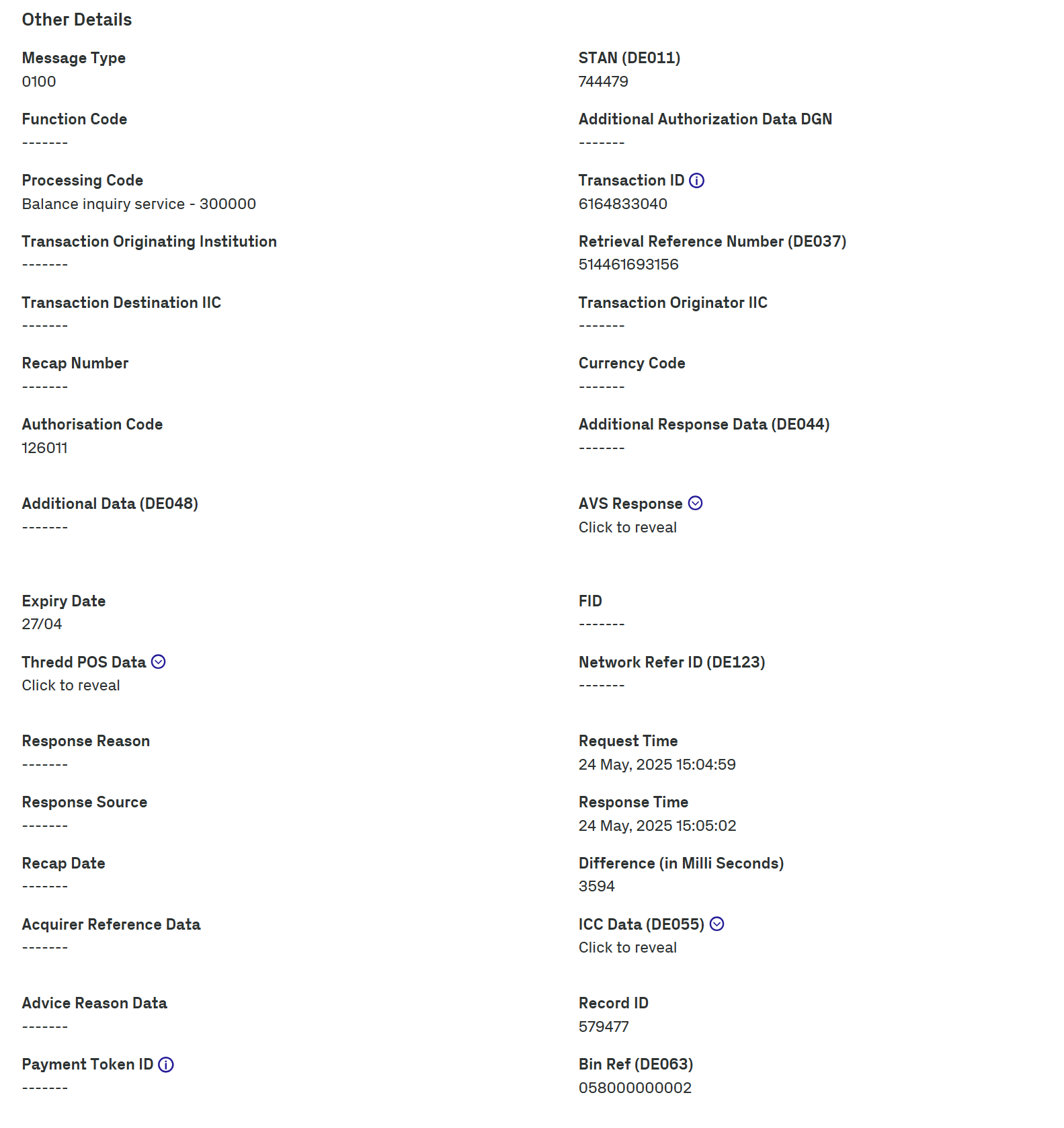
Figure 22: Other Details in the Transaction Details page.
For information on each of the fields, see Appendix F: Transaction Details Fields.
11.3 Viewing all Transactions for the Card
To display a list of all the transactions for a specific card:
-
View the transaction details. The Card Details button is also displayed.
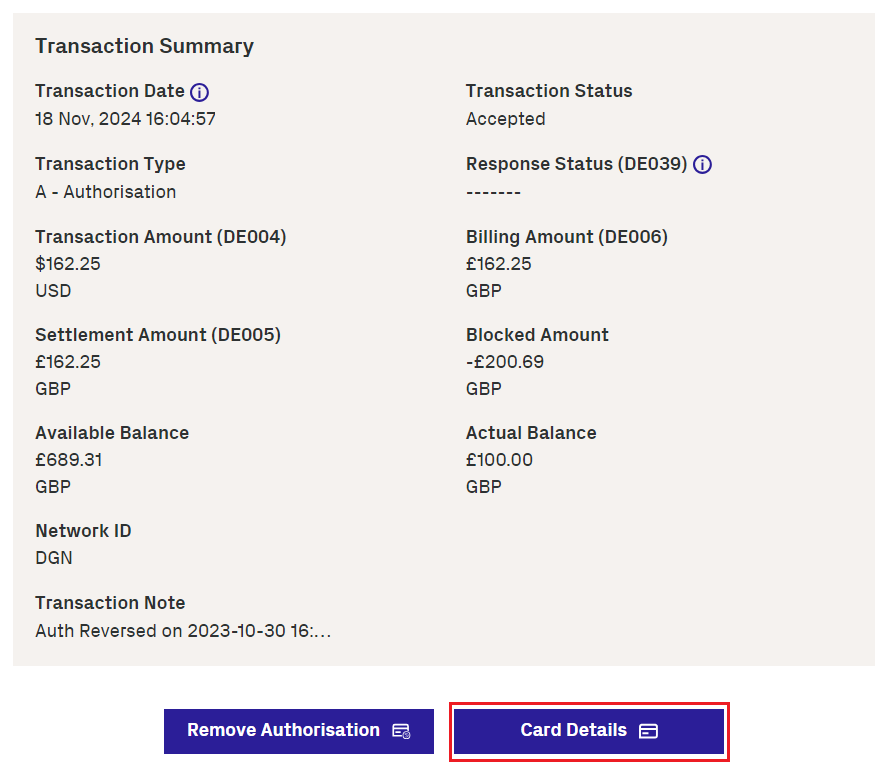
Figure 23: Card Details button
-
Click the Card Details button to display the Show Other Details page for the card involved in the transaction.
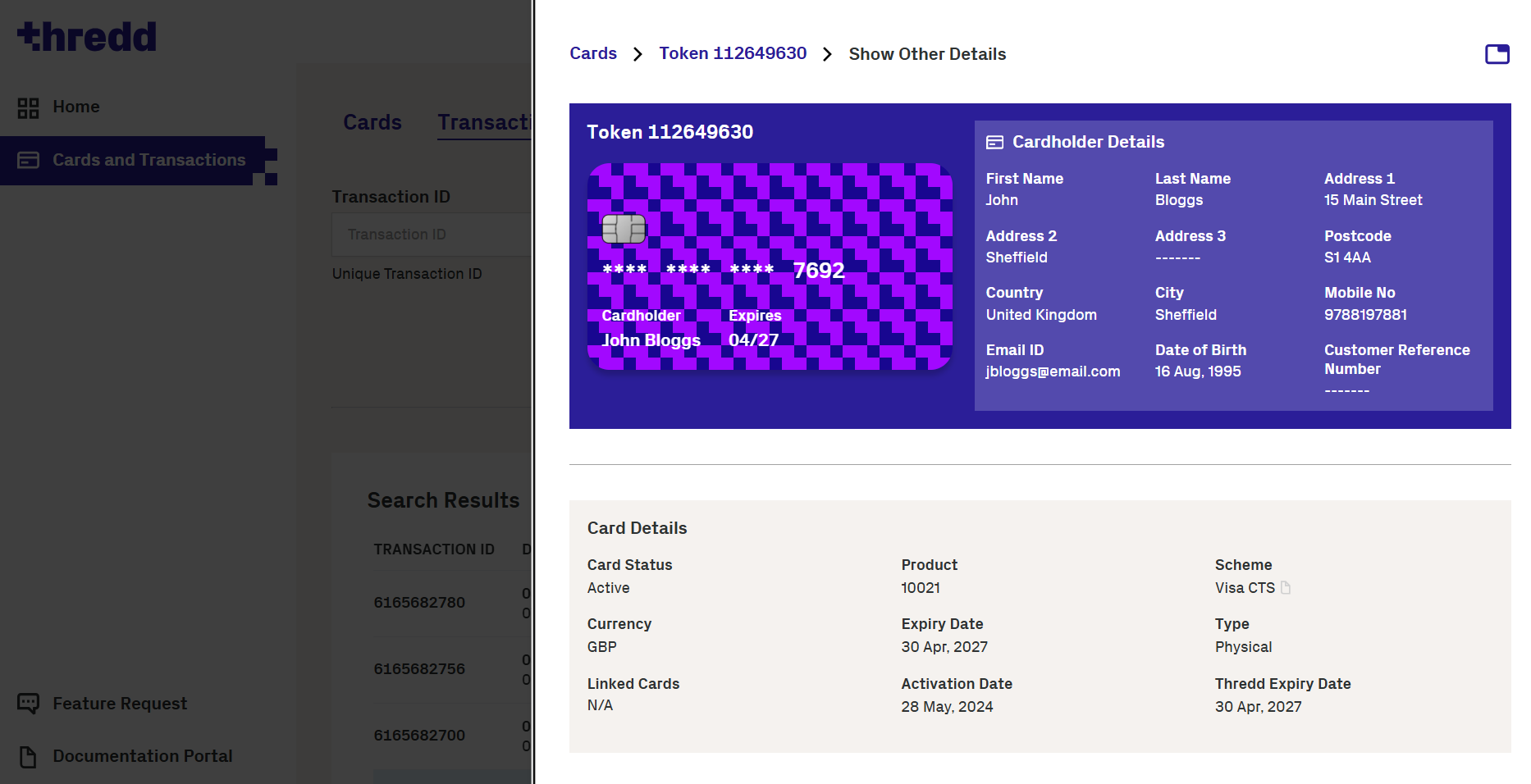
Figure 24: Card Details with all transactions displayed.
11.4 Viewing 3D Secure details
3D Secure (Three Domain Structure), also known as cardholder authentication, is a security protocol that helps to prevent fraud in online (ecommerce) credit and debit card transactions. By default, authentication is biometric (‘in client app’) with fallback authentication set to 'OTPSMS' (a one-time passcode (OTP) is sent to the cardholder via SMS.).
The availability of authentication depends on the product configuration. For more information, see the Apata 3D Secure Guide or the Cardinal 3D Secure Guide.
11.4.1 Viewing Mastercard 3D Secure transactions
To view information about a Mastercard 3D Secure transaction:
-
View the transaction details.
-
In the Transaction Details, inspect the Additional Data (DE048) field.
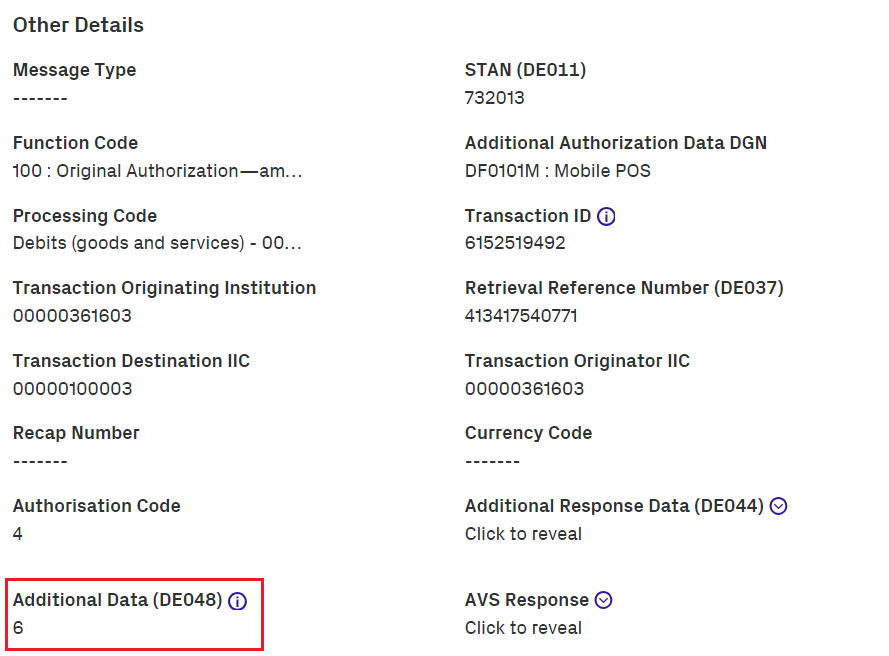
Figure 25: Additional Response Data field in the Transaction Details
EHI Data also provides 3D Secure Authentication results containing AAV data. For example: ><cavv>jDjy8/KIra5GCBAVEjPpB0kAAAA=</cavv>< For more information, see the External Host Interface (EHI) Guide.
11.4.2 Viewing Visa 3D Secure transactions
To view information about a Visa 3D Secure transaction:
- View the transaction details.
-
In Other Details, click the Additional Response Data (DE044) field.
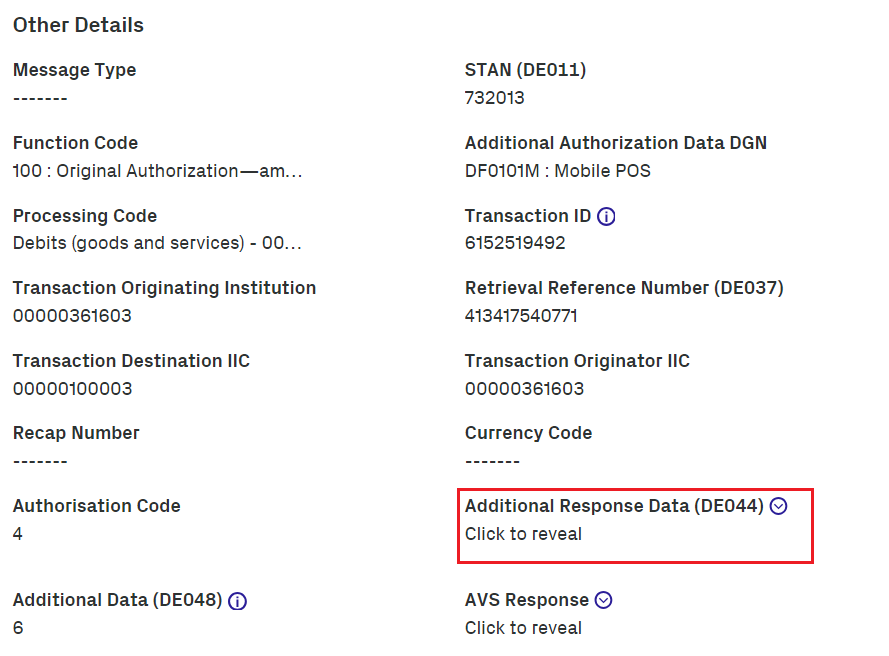
Figure 26: Additional Response Data field in the Transaction Details
The decoded values for DE044 display.
EHI Data also provides 3D Secure Authentication results containing AAV data; for example: ><cavv>AAABBBQ5KVcglogDBDkpEFQKZyo==</cavv>< For more information, read the External Host Interface (EHI) Guide.
11.5 Remove Transaction Authorisation
In some instances, you may want to remove an authorisation on a transaction if the authorisation is no longer required. The Remove Transaction Authorisation functionality enables you to remove an authorisation from a transaction. This functionality is only enabled for Authorisation transactions. If the transaction is anything else then the field will be disabled.
Removing an authorisation does not prevent the associated presentment from being received for this transaction. If a presentment is received Thredd will still process this.
To remove an authorisation from a transaction:
-
Click Remove Authorisation to open the Remove Transaction Authorisation window.
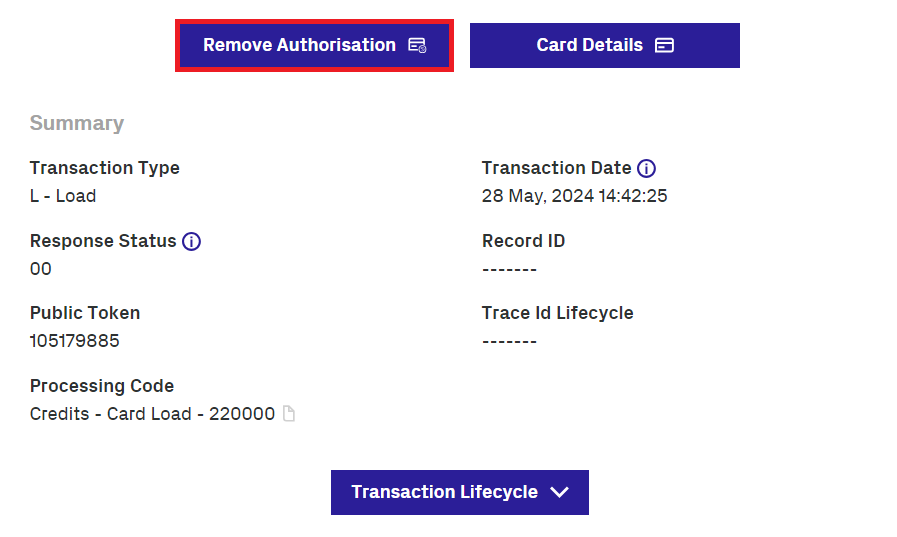
Figure 27: Remove Authorisation button
The Remove Transaction Authorisation window displays.
-
Enter any notes related to the removal of the authorisation in the Notes field.
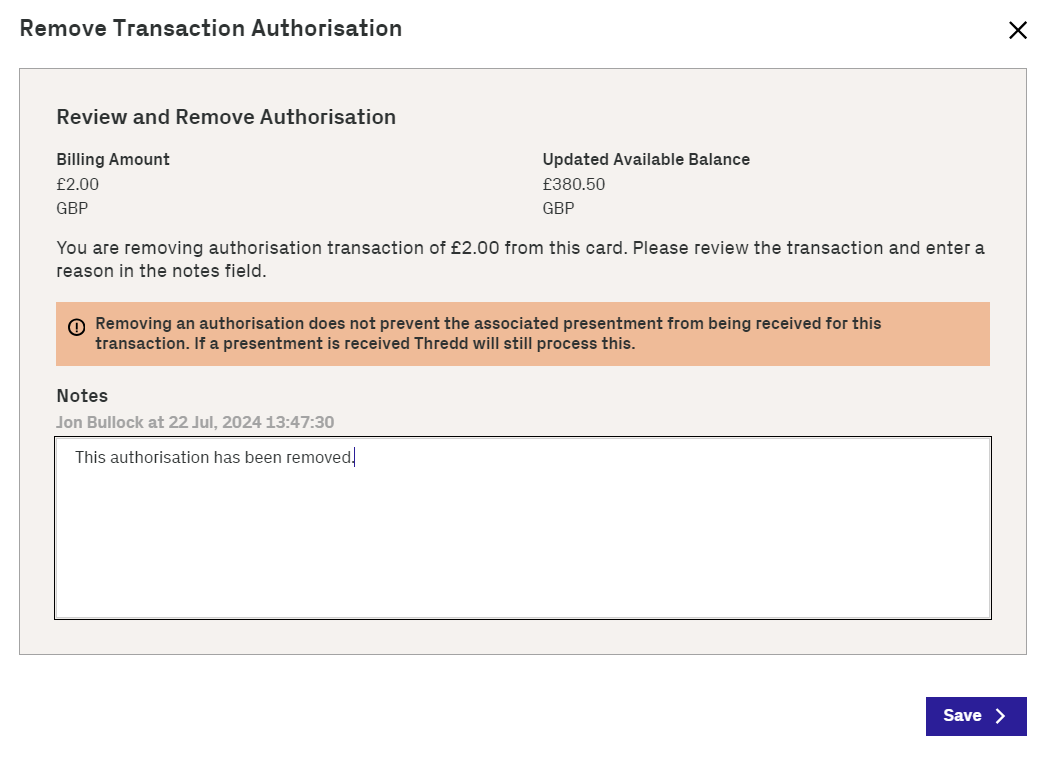
Figure 28: Remove Transaction Authorisation window
-
Click Save to remove the authorisation from the transaction.
The window closes and the authorisation is removed from the transaction.